How To Fix Duplicate Contacts from Outlook? – 02 Top Ways

Microsoft Outlook is an email, calendar, and contact management system used by many people. However, "duplicate PST contacts" are something that just about every user experiences during their time using Outlook. It's frustrating to see the same person appear multiple times on your list of contacts, but it also leads to wasting storage space and can create problems with contact syncing across your different devices.
The good news is that removing duplicate contacts is not a difficult task. In this blog, we will review the two primary methods for removing duplicate contacts in Outlook. We will start with the built-in (manual methods) and then discuss a professional option of using a duplicate remover tool that will handle the cleanup process more quickly and reliably.
What Causes Duplicate Contacts in Outlook?
Duplicate contacts are typically created by the following:
- Importing contacts from a CSV or other files, more than once
- Sync issue(s) of Outlook with your phone, Google, or iCloud
- Separate entries for the same contact, ie, work email versus personal email
- Outlook default settings to create a new entry if the person already exists when importing contacts
Now that we understand the causes of duplicate contacts, let's discuss how to resolve them.
Method 1: Fix Duplicate Contacts Manually
If you have a short list of contacts, you can clean it manually without any auxiliary tools.
How to Clean Duplicates Manually
- Launch Outlook and switch to the People (Contacts) view.
- On the View tab, select to sort contacts by name, email, or company. This will line up duplicate contacts side-by-side.
- Compare the two records carefully. If they are identical, right-click the extra one and select Delete.
- If they are not identical and the duplicates have different information, copy the missing information into one contact record, then delete the other eventually.
- Keep comparing contacts until your contact list is cleaned up.
Method 2. Using the Outlook Import/Export Tool
The Import/Export wizard is useful for bulk cleaning duplicate Outlook contacts.
Steps:
1. Export your Contact
- Go, to the File > Open & Export > Import/Export
- Select Export to a file > CSV (Comma Separated Values)
- Store the file on your computer.
2. Open and Clean the File with Excel
- In Excel, open the CSV file.
- Go to Data > Remove Duplicates.
- Review the cleaned data thoroughly and save.
3. Delete Current Contacts
- If starting from scratch is fine, erase all the contacts in Outlook.
4. Re-import the Clean File
- Go to File > Import/Export > Import from another program or file.
- Select the cleaned CSV file.
- Choose Do not import duplicate items or Replace duplicates with items imported.
Best Option For Fix Duplicate Contacts from Outlook
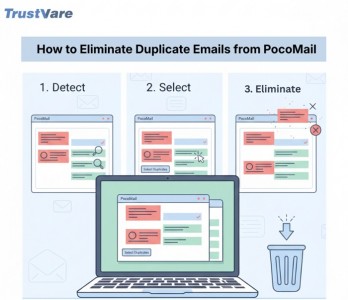
If you find either the manual method or the import/export method cumbersome, and if you are trying to fix thousands of contacts at once, it would be best to use a tool such as the TrustVare Outlook Duplicate Remover to help you. This tool saves your time and effort by going through your duplicate Outlook, fixing Emails, Notes, Tasks, Calendars, etc, without you having to install a new application. This tool works with all versions of Windows OS, namely 11, 10, 8.1, 8, and 7. It can handle many duplicate Outlook Contacts without losing the original Contacts. Users can use a free demo.
Benefits of Using a Tool
- Supports PST & OST Files – Works with all Outlook data files (ANSI/Unicode, password-protected, orphaned, or archived).
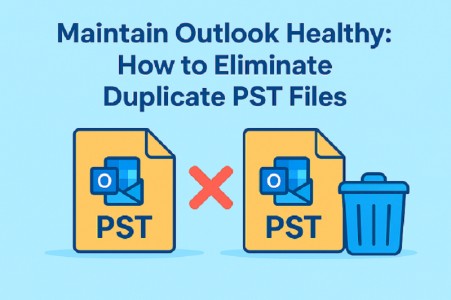
- Removes Duplicates Across All Items – Cleans not only duplicate PST contacts but also emails, tasks, calendars, journals, and notes.
- Flexible Duplicate Removal – Option to remove duplicates in Outlook within a folder or across all folders.
- Batch File Support – Add and process multiple duplicate PST/OST files simultaneously.
- Preserves Metadata – Keeps attributes like To, From, CC, BCC, Date, and folder hierarchy intact.
- MS Outlook Not Required – Works independently, no need to have MS Outlook or other applications installed.
- Handles duplicate Outlook Large Files – No size limitation for duplicate PST or OST files.
- Preview Mode – Shows duplicates in Outlook before deletion for careful review.
- User-Friendly Interface – Simple, intuitive UI suitable for all users.
- Wide Compatibility – Supports Windows and Outlook versions from 2007 up to 2021.
This tool is particularly beneficial to any business or professional who needs to deal with a significant number of duplicate Outlook contacts and wishes to do so with a reliable and automated option.
Tips to Manage Duplicate Contacts Moving Forward
- Double-check the import settings before adding contacts.
- If available, enable the “Prevent Duplicates” option when you sync.
- Regularly back up your contact file.
- Run a duplicate remover program as routine preventative maintenance.
Final Thought
While duplicate contacts in Outlook are probably not that big of a deal to most, they do cause confusion, clutter, and syncing problems. However, duplicate contacts in Outlook do not have to be a lifetime burden. Use the manual option, opt for the Import/Export option. However, if you are serious about duplicate contact management, invest in a dedicated duplicate remover program like Outlook Duplicate Remover, which gives you an automated, reliable, and efficient method of removing duplicates. By utilizing these options, your Outlook contacts will be organized and easily managed, allowing you to have better performance and time savings.

Комментарии пользователей